Reporting

TeamSupport offers advanced reporting capabilities which you can use to view your data in virtually any way you want.
 
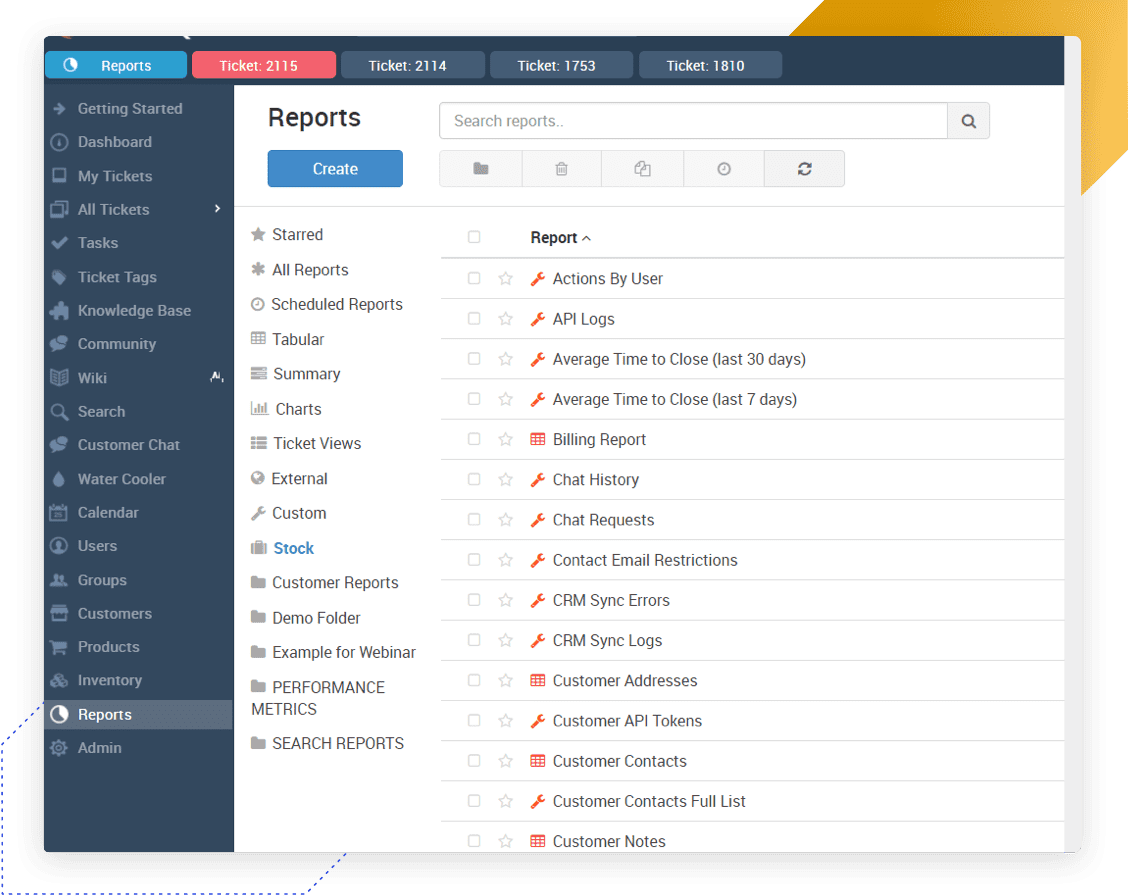
Several pre-defined "Stock" reports come standard as a part of your TeamSupport subscription, and you can also create custom reports easily and add reports to your favorites list.
 
A typical report looks like this:


When you click on a report on the left side, the report is automatically shown on the right without any filters applied.
 
At this point you can do several things:
 
1. At the top of the report panel you can assign one or more filters to the report.  These filters can be on any field on any table which is associated with the report (ie not just the visible fields).  Select the field you want to filter on in the pulldown, then set the filter (this changes depending on the type of field, for example a numeric field will have "greater than" and "less than" while a text field will not), set the value, then press the "Add Condition" button.  Note that you can add as many filters as you want.  The "ALL" button at the top of the panel can be clicked to change this to "ANY".  The default "ALL" means that all criteria in the filters have to be met (a boolean "and"), while the "ANY" means that a record will be returned if it meets any of the criteria (a boolean "or").
 
2. You can click on any of the column headers to change the sort order
 
3. You can drag a column header to the top of the report (where it says "Drag a column header...") to group items together.  For example, in the screenshot above you could group all tickets of a common severity together.
 
4. You can filter the displayed fields by putting a value in one of the boxes at the top of the report and selecting the filter type.  This is similar to the filtering in #1 above except that you can only do it on the displayed fields and it does not get saved with the report.
 
5. You can export the data in the report into a variety of formats which will let you manipulate and analyze the data in different ways.  Simply click on the "Export to PDF", "Export to Excel", or "Export to CSV" buttons at the top of the report.
 
Note that you can also create your own custom reports which is detailed here.
Subpages (1): Creating Reports