

Our customer support ticketing system enables you to automate repetitive processes so your service team can focus on creating exceptional customer relationships.

Our customer support ticketing system enables you to automate repetitive processes so your service team can focus on creating exceptional customer relationships.

Tired of dealing with an overflowing email inbox? Link your support email address with TeamSupport and let our web-based help desk take charge. Use the conversation feature to talk to your customers through the main TeamSupport interface and never deal with an email inbox again.
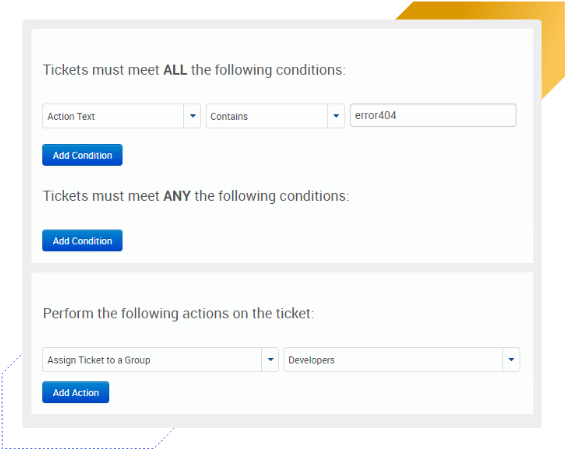
TeamSupport lets you set up very simple rules to remind an agent to follow up, or even to remind a customer when a ticket is pending their reply.
Want to make sure a ticket gets routed to the right person or group? Tickets can easily be routed, escalated, or closed with completely customizable and flexible rules with our ticket management system.
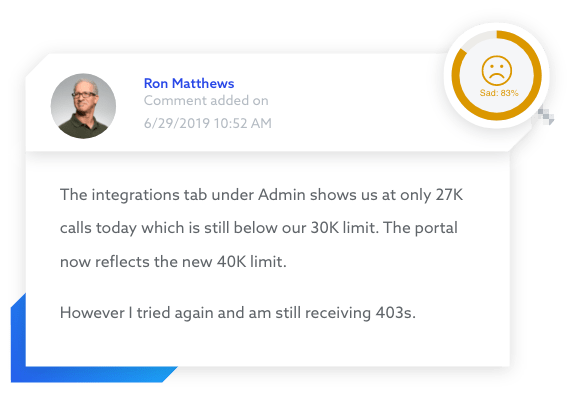
Powered by sophisticated AI technology, TeamSupport offers real-time sentiment analysis within tickets so you can instantly gauge the tone of a customer response. This automated technology helps your team prioritize their ticket workflows and also creates proactive customer support opportunities.
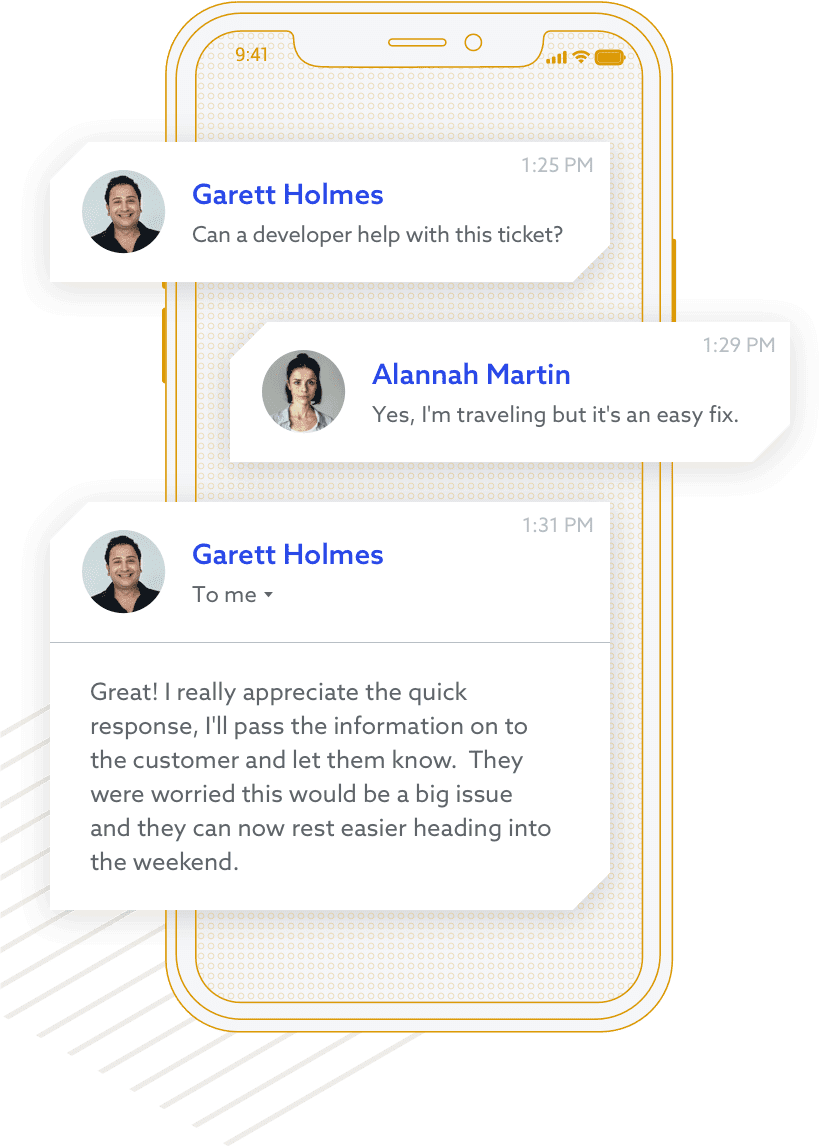
With TeamSupport’s easy-to-use help desk mobile apps for Android and Apple iOS and a mobile ticket management platform that supports all major smartphones and tablets, your customers can be supported even when agents are away from their desks.

We know every business is unique, so we've designed TeamSupport to adapt to any customer service environment. With our support ticket management software, you can define properties like custom ticket types, ticket tags, and action types to meet your customer support needs.
You can also create custom fields that are conditional and unique to your organization — create unlimited custom fields for tickets, users, and even customers. You can also organize your custom fields into categories with simple drag and drop functionality.
Our collision prevention features mean users can easily see when someone else is looking at the same ticket. Clicking on the user’s name lets you chat with them right away, and no matter who makes a change, tickets automatically update in real time for all users to see.


A picture is worth 1,000 words, and a video is worth even more! TeamSupport’s visual customer support features allow agents to upload images, embed a screencast, or share a webcam video recording directly into a ticket with just a few clicks, so they can show customers exactly how to perform a task or fix a problem.
You can also add inline images and file attachments to tickets and customers via a stored library, copy/paste, or even Dropbox!